Virtualenv in Ubuntu 20.04.3
In order to use Virtualenv with your Ubuntu OS you need to follow the next steps, at least, these are my notes..
At the beginning there was nothing…
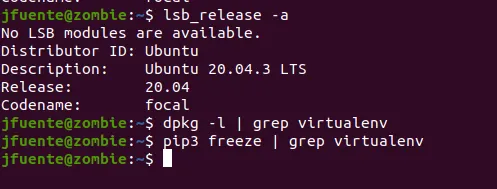
Ubuntu release is 20.04.3
lsb_release -a
No deb virtualenv packages
dpkg -l | grep virtualenv
No pip3 virtualenv packages
pip3 freeze | grep virtualenv
Now with apt we install this packages (virtualenv and virtualenvwrapper)
sudo apt install virtualenv virtualenvwrapper
As a result this packages are installed..

If you want easy access to run virtualenv commands via virtualenvwrapper it is recommended to edit your .bashrc file and include at the end these three lines:
export VIRTUALENVWRAPPER_PYTHON=/usr/bin/python3
export WORKON_HOME=$HOME/.virtualenvs
. /usr/share/virtualenvwrapper/virtualenvwrapper.sh
Now if you run your bash command, virtualenvwrapper commands would be available.
What I usually do is, create the folder project, then create a virtualenv with the same name.
mkdir /home/jfuente/proyectos/myprojectname/
mkvirtualenv myprojectname -a /home/jfuente/proyectos/myprojectname/
If everything has worked fine, you’ll see the virtualenv name in the terminal
(myprojectname) jfuente@zombie:~/proyectos/myprojectname$
Now you can run the command workon myprojectname to activate the virtualenv, and deactivate to exit the environment.
When creating the virtualenv, you can use the parameter -p to set the Python version for the environment.
If you have python2 installed and you want to use it for a virtual environment you should do.
mkdir /home/jfuente/proyectos/mypy2project
mkvirtualenv mypy2project -a /home/jfuente/proyectos/mypy2project/ -p /usr/bin/python2.7
Other interesting commands are lsvirtualenv and rmvirtualenv.
More on https://twitter.com/jdelafuente